

 5 parts
Web portal
Aware Trackview Module
Set up geofences and watch live fleet status with the Aware (Trackview) module.
5 PDF guides includedAudit training records, licences and time logs with the HR module.
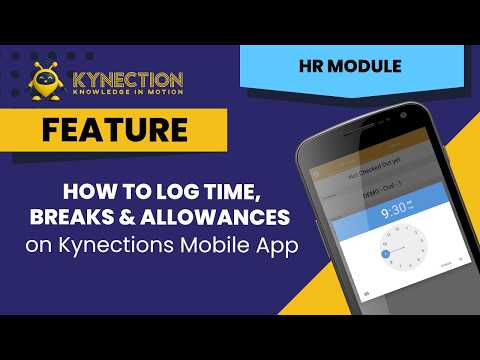
How to log a shift from the phone so you are paid accurately. You select the project, confirm you are on site, add tasks and allowances, leave a note for your manager and submit the shift for approval. The project you check in against is what the hours are costed to, so it drives both your pay and the project’s reporting.
In this part
Approved shifts flow from your manager into the timesheet. The PDF guide below has the screens for each step.
Modules that pair with Team Human Resources Module
5 partsSet up geofences and watch live fleet status with the Aware (Trackview) module.
5 PDF guides included 13 parts
Log faults, schedule repairs, record labour and parts, and report on fleet compliance.
13 PDF guides included 5 parts
Transport-specific HR workflows in the Kynection web portal: payroll, compliance, regions and employee data.
5 PDF guides included