

 5 parts
Web portal
HR Transport Module
Transport-specific HR workflows in the Kynection web portal: payroll, compliance, regions and employee data.
5 PDF guides includedSet up geofences and watch live fleet status with the Aware (Trackview) module.
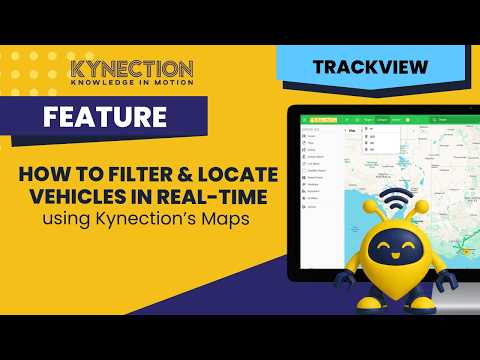
How to find a vehicle on the live map in Kynection Aware (Trackview) from the web portal. The video narrows a large fleet by region, category and vehicle, reads fleet state from the status legend, switches the base map to satellite for yard and site positions, and opens a vehicle’s live telemetry. Filters stack, so region, category and vehicle narrow together rather than replacing each other.
In this part
The PDF guide below has the screens for each step.
Modules that pair with Aware Trackview Module
5 partsTransport-specific HR workflows in the Kynection web portal: payroll, compliance, regions and employee data.
5 PDF guides included 9 parts
Run accurate stocktakes and assign warehouse stock with the Inventory module.
9 PDF guides included 4 parts
Import data, manage users and raise a support request from the web platform.
4 PDF guides included