

 5 parts
Web portal
Aware Trackview Module
Set up geofences and watch live fleet status with the Aware (Trackview) module.
5 PDF guides includedTransport-specific HR workflows in the Kynection web portal: payroll, compliance, regions and employee data.
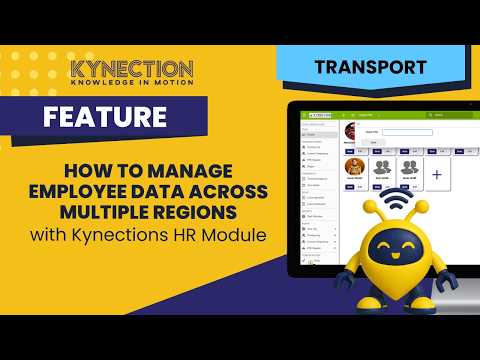
How to get into the HR module on the web portal, read the people list and apply your first region filter so you are looking at the right group of employees. It is for anyone new to the module who needs to find people quickly, and the next part goes deeper on stacking several regions into one view.
In this part
Whatever filter is active is written across the top of the screen, so you always know the scope of what you are seeing. The PDF guide below has the screens for each step.
Modules that pair with HR Transport Module
5 partsSet up geofences and watch live fleet status with the Aware (Trackview) module.
5 PDF guides included 9 parts
Run accurate stocktakes and assign warehouse stock with the Inventory module.
9 PDF guides included 4 parts
Import data, manage users and raise a support request from the web platform.
4 PDF guides included